MacBook mockups
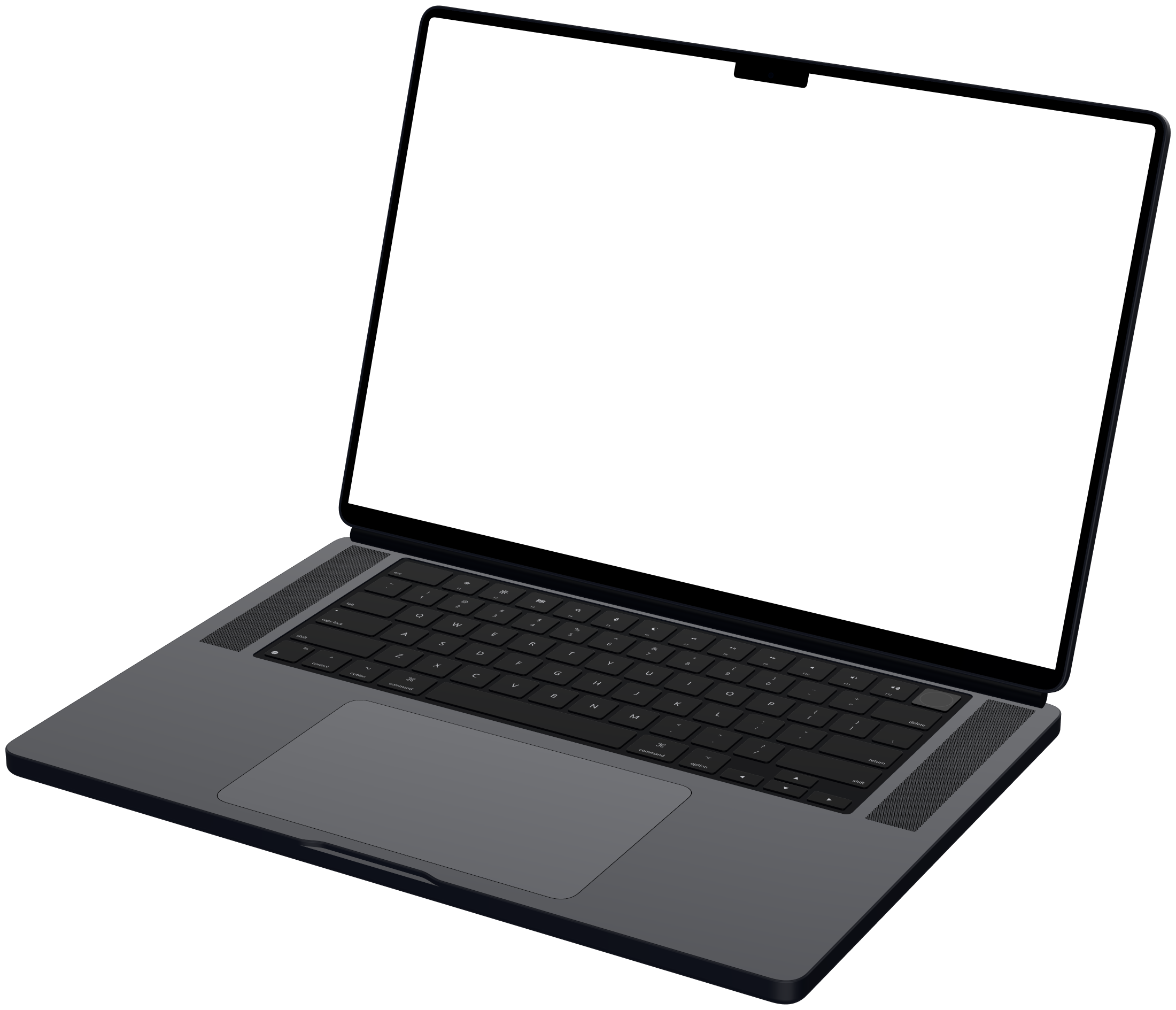
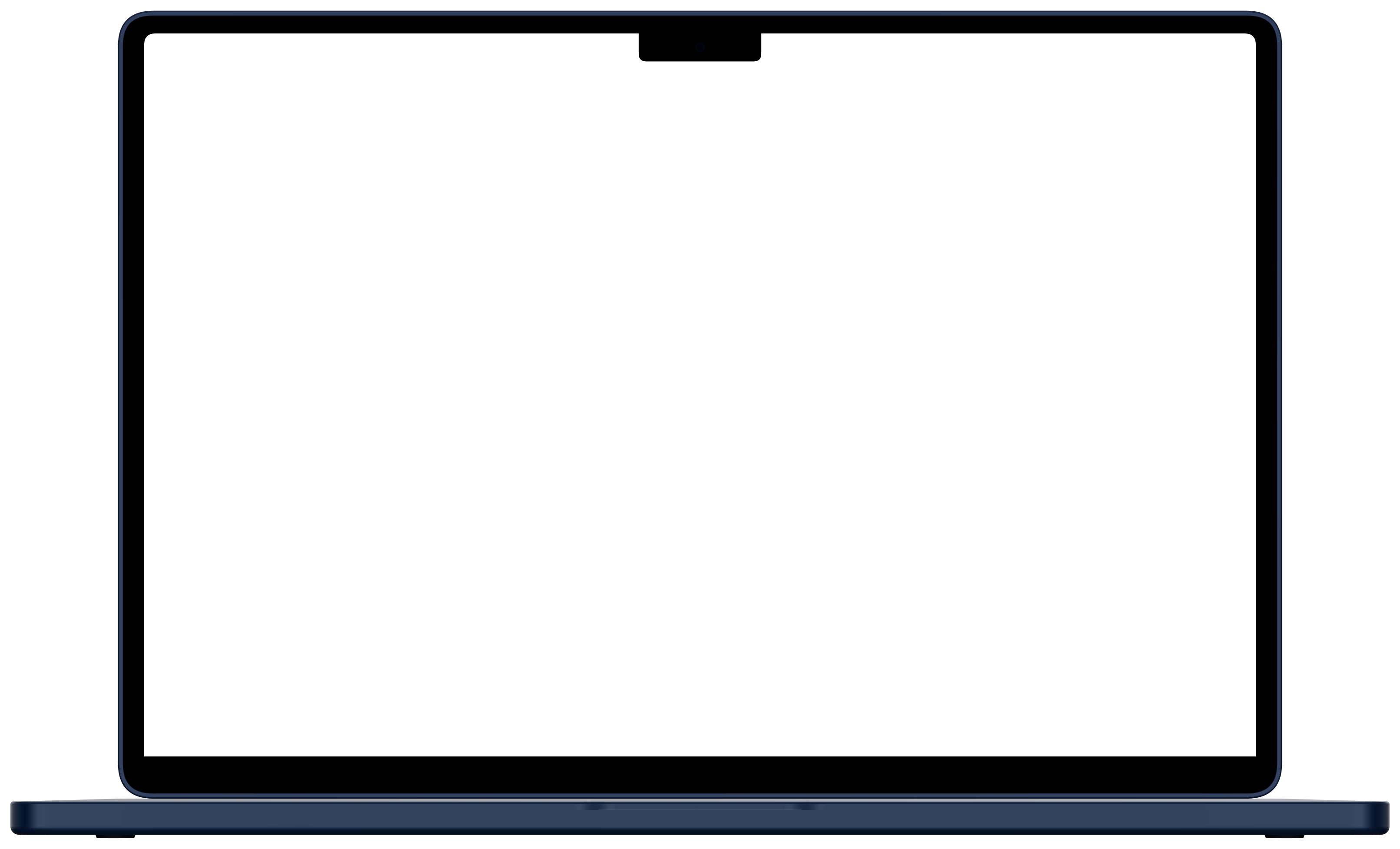
Mockya has 2 MacBook frames for screen recordings: MacBook Pro 16" and MacBook Air 13". Each rendered frame comes in Front, Left and Right angles, with your recording under the glass at the panel's native resolution. Export MP4, WebM, GIF or PNG in 16:9, 2:1 and 4:3, up to 4K, with no watermark.

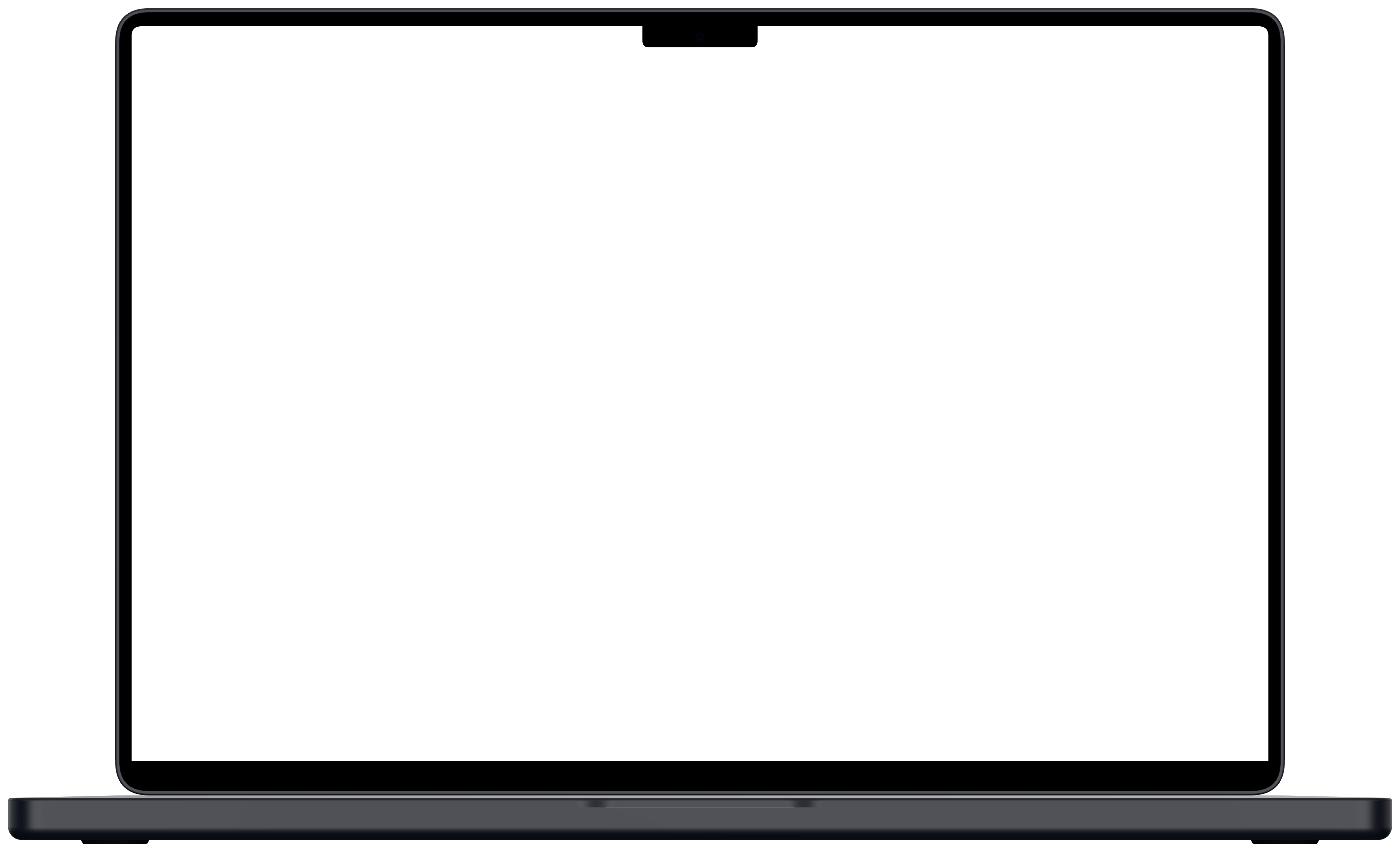
Which MacBook frames can I use?
Pick one to see its three angles, its native resolution and exactly what size to record.

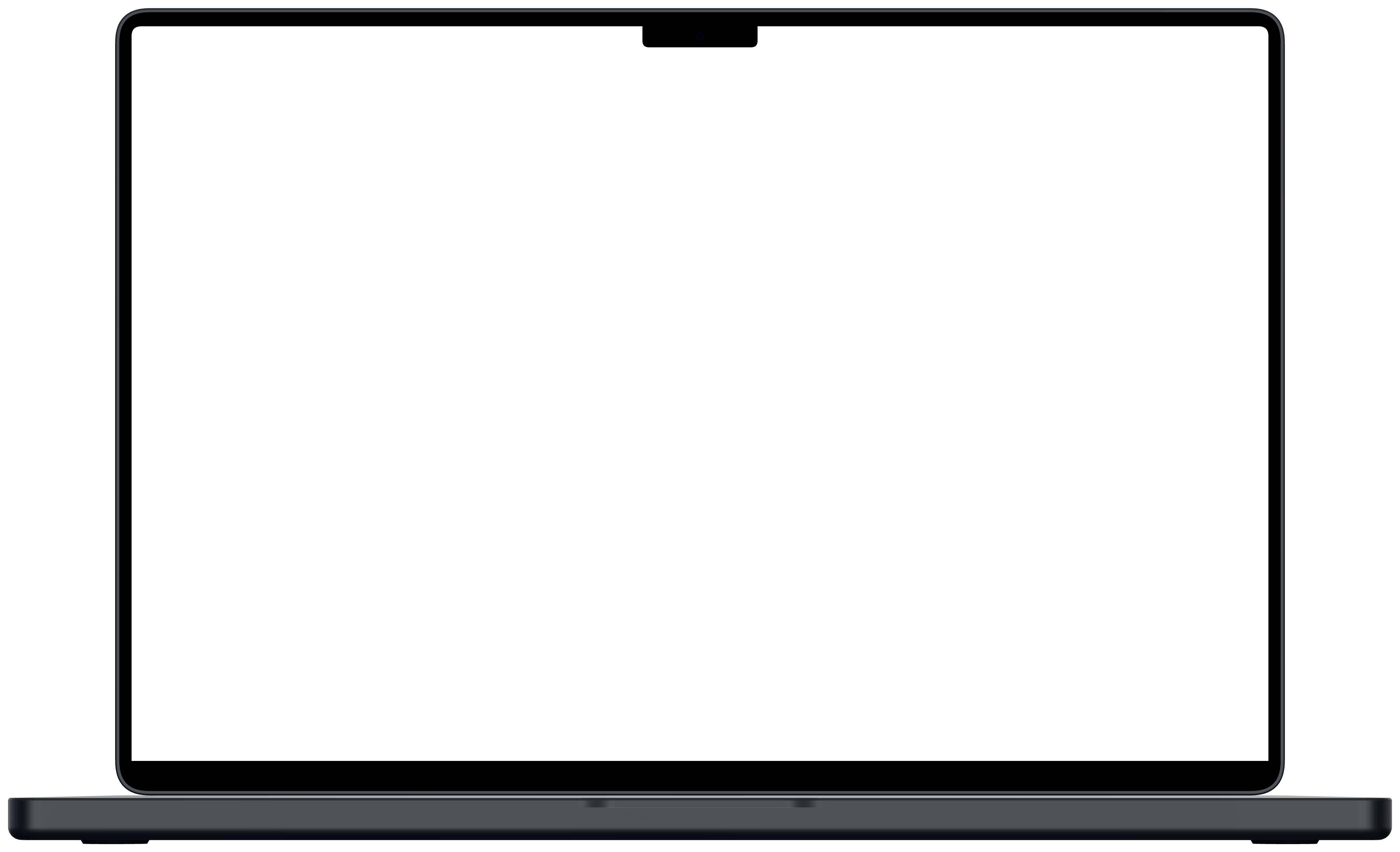
How do the MacBook frames differ?
Their screens differ in size and shape. Match the frame to the device your recording came from and it fills the glass exactly.
| Frame | Year | Native resolution | Shape | Angles |
|---|---|---|---|---|
| MacBook Pro 16" | 2026 | 3,456 × 2,234 | 16:10.3 | 3 |
| MacBook Air 13" | 2026 | 2,560 × 1,664 | 16:10.4 | 3 |
How do I record my Mac screen for this frame?
- 1
Press Shift-Command-5 and choose Record Entire Screen, or Record Selected Portion to capture one window.
- 2
Under Options, pick where the file goes and whether to show mouse clicks, then click Record.
- 3
Run through your demo, then click the stop button in the menu bar. The clip lands as a MOV, which Mockya reads as it is.
Record the whole screen for a MacBook frame: the frame's screen has the same shape as the Mac's own, so nothing is cropped. Hide desktop icons and quit apps with notifications first.
MacBook mockup questions
Other devices
Which MacBook mockups does Mockya have?
MacBook Pro 16" and MacBook Air 13". Every rendered frame has Front, Left and Right angles, and new models are added as they launch.
What size should I record for a MacBook mockup?
Record at the screen's native resolution, or any size with the same shape. MacBook Pro 16": 3,456 × 2,234 (16:10.3); MacBook Air 13": 2,560 × 1,664 (16:10.4). A different shape still works: Mockya fills the screen and trims the overflow evenly, or fits the whole clip with bars.
Which canvas sizes suit a MacBook mockup?
16:9, 2:1 and 4:3 work best, and every export can add the other canvases too. Each canvas is composed for its own frame rather than cropped from the first.
Is the MacBook mockup free?
Editing, previewing and PNG stills are free with no watermark. Video exports cost credits from packs you buy once; a 20-second 1080p MP4 is 20 credits, and new accounts start with 25 free.
Your recording, launch-ready in a minute.
Drop in a screen recording, pick a device and export every size you need. Editing is free, and new accounts get 25 credits.
Your files never leave your machine.